Get the latest VXDIAG Nissan Consult 3 Plus V241 software and patch for your VCX NANO or VCX SE. This free download offers full diagnostic and immobilizer functions for Nissan vehicles. Easy, step-by-step installation guide.
Unlock the full diagnostic power of your VXDIAG VCX NANO or VCX SE with the latest
Nissan Consult 3 Plus V241 software. This new version, V240.10 (Setup V241), has been rigorously tested and confirmed to work flawlessly, providing you with a reliable and comprehensive solution for all your Nissan, Infiniti, and GT-R diagnostic needs.
Whether you're a professional mechanic or a dedicated DIY enthusiast, this software is designed to help you perform advanced diagnostics, maintenance, and programming tasks with ease. Our guide provides a detailed, step-by-step procedure to ensure a smooth installation and activation process.
Key Features of Nissan Consult 3 Plus V241 Software:
Latest Version: V240.10 (Setup V241) with the most recent updates and vehicle coverage.
Broad Compatibility: Perfectly suited for VXDIAG VCX NANO and VCX SE for Nissan.
Multi-Language Support: Work in your preferred language with support for Chinese, Finnish, German, French, Greek, Japanese, Portuguese, Russian, Spanish, Turkish, Thai, Czech, Polish, and Hungarian.
Optimized for Windows 10: Seamless performance on Windows 10 64bit. Other systems may also be compatible.
Comprehensive Diagnostics: Read and clear DTCs, view live data streams, perform active tests, and conduct ECU reprogramming.
Immobilizer Activation: The included patch fully activates the immobilizer function, allowing you to perform key programming and other security-related tasks.
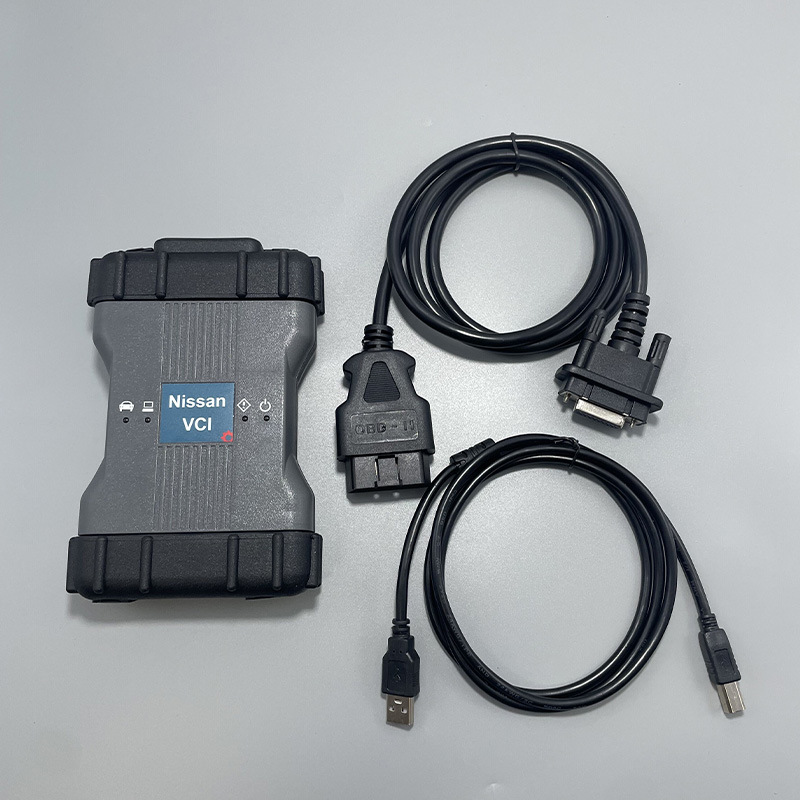
Why Choose VXDIAG for Nissan Diagnostics?
VXDIAG tools are a cost-effective and powerful alternative to OEM scanners. By combining high-quality hardware with up-to-date software, they offer the same level of functionality as much more expensive dealer-level tools. The
VCX NANO and VCX SE provide a stable, fast, and reliable connection for accurate and efficient vehicle diagnostics.
NISSAN VCI Download and Installation Guide (Step-by-Step)
Follow these simple instructions to download, install, and activate the software on your system.
Step 1: Download the Nissan VCI Software
Click the download link below to get the Nissan Consult 3 Plus V241 software package.
https://mega.nz/file/SFVRAKhL#_r_vnvGCFzUM4VmrkWsWUPbZB3nI4jeFy_lYM_bBrW4
Step 2: Install the Software
Locate the downloaded software folder on your computer.
Open the C3P_V241.13.00 folder and run Setup as an Administrator.
Select First Installation and click Next.
Accept the license agreement.
Select your region and country.
Choose your preferred application language and follow the on-screen prompts to complete the setup.
Once the first part of the setup is finished, open the C3P_V241.20.00 folder.
Run Setup as an Administrator to complete the software installation.
Step 3: Install the Database
Open the Pplus_V241.1F folder and run the Pplus_V241.1F program.
Select the setup language and extract the database files.
Next, open the Pplus_V241.2 folder and run the Pplus_V241.2 program.
Select your setup language and proceed with the database installation.
Step 4: Set Up VX Manager & Drivers
If you haven't already, install the VX Manager software.
Connect your VCX SE or VCX NANO Nissan scanner to your laptop via USB.
Open VX Manager and ensure the device is detected.
Go to the "Diagnostic" tab in VX Manager and install the
Nissan VCI driver.
Keep your VXDIAG firmware and license up to date for optimal performance.
Step 5: Run the Software & Activate Immobilizer
From the software folder, find the Loader patch file and send a shortcut to your desktop.
Run the Nissan Consult 3 Plus software from the newly created desktop shortcut.
When prompted, select your VI/MI device (VCX). The software will automatically search for and connect to your VXDIAG scanner.
Once the VCX device is detected, press "Connect."
Activate Immobilizer Function:
The immobilizer menu is initially grayed out. To activate this crucial function, follow these final steps:
Navigate to this folder path: C:\Win10Prox64\Consult-iii_Plus\System\Application\ApplicationData\CommonSetting
Locate and delete the DiagnosticTool.ini file.
Copy the DiagnosticTool.ini file from the software folder and paste it into the CommonSetting folder, replacing the old file.
Run the Nissan Consult 3 Plus software from the Loader shortcut again.
You will now see the Immobilizer menu is fully activated and ready for use.
With this powerful combination of software and hardware, you can tackle a wide range of tasks from basic code reading to complex immobilizer programming, all at a fraction of the cost of OEM dealer tools. Get your free download today and take control of your vehicle's diagnostics.