EVG7 diagnostic controller tablet is an ideal partner for BMW ICOM A2 BMW ICOM Next , Mercedes diagnostic tools (SDconnect C4, C3 Pro), etc., to diagnose or program vehicles. However, some users reported that their EVG7 screen turned blue during use. Here are some tips to solve the blue screen issue on the EVG7 tablet.
The EVG7 diagnostic controller tablet is a popular tool for professionals working with BMW ICOM Next, Mercedes diagnostic tools (such as MB SDconnect C4 and MB STAR C3 Pro), and other vehicle programming and diagnostic equipment.
However, some users encounter a blue screen issue when running the BMW ICOM A2 BMW ICOM Next software on the EVG7 tablet.
This guide provides step-by-step instructions to resolve this issue effectively.
Understanding the Blue Screen Issue:
The blue screen issue typically arises due to incorrect SATA mode settings in the EVG7 tablet’s BIOS. By adjusting these settings, users can resolve the problem and ensure smooth operation of the BMW ICOM Next software.
Step-by-Step Solution:
Step 1: Start the EVG7 Tablet
Locate the left button on the EVG7 tablet (marked with a red circle).
Press the button to power on the device.
Step 2: Access the BIOS Settings
Once the device is powered on, press the SAS button to enter the BIOS setup.
Step 3: Modify the SATA Configuration
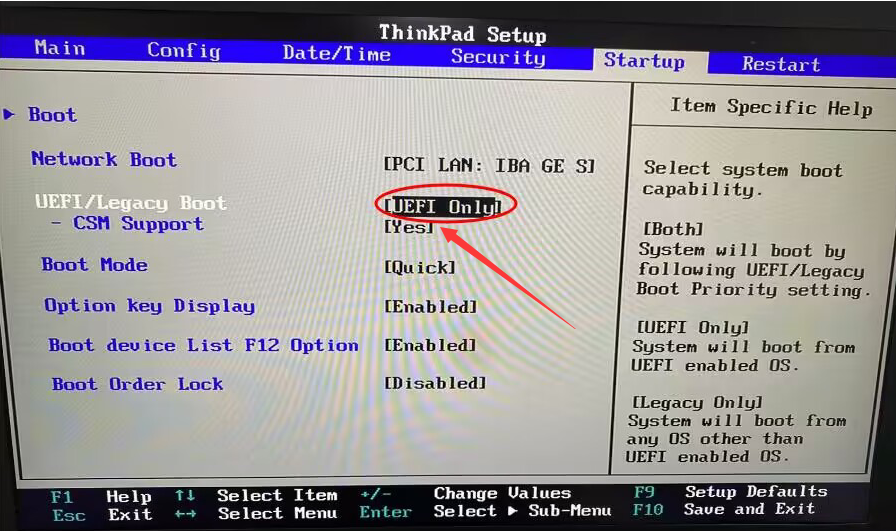
In the BIOS menu, navigate to the SATA Configuration section.
Change the SATA start mode to match the requirements of your operating system:
IDE mode for Windows XP.
AHCI mode for Windows 7 or Windows 8.
Step 4: Save Changes
After selecting the appropriate SATA mode, go to the top menu bar and select Save and Exit.
Confirm the changes by clicking Save Changes and Exit, and then select Yes when prompted.
Step 5: Restart the Tablet
The EVG7 tablet will restart automatically with the updated BIOS settings.
Verify that the blue screen issue is resolved and the BMW ICOM Next HDD software runs correctly.
Ensure that your EVG7 tablet’s BIOS firmware is up to date to avoid compatibility issues.
If the problem persists after following these steps, check the HDD connections or consult the software vendor for further support.
Regularly back up your BMW ICOM software to prevent data loss during troubleshooting.
The EVG7 tablet is a robust and reliable tool for vehicle diagnostics when configured correctly. By following the steps outlined in this guide, users can resolve the blue screen issue and continue using their BMW ICOM Next HDD software without interruptions. Proper BIOS configuration is key to maintaining the efficiency and functionality of your diagnostic setup.
This solution is also suitable for customers who have purchased MB STAR C3, MB STAR C4, or MB STAR C5 software.
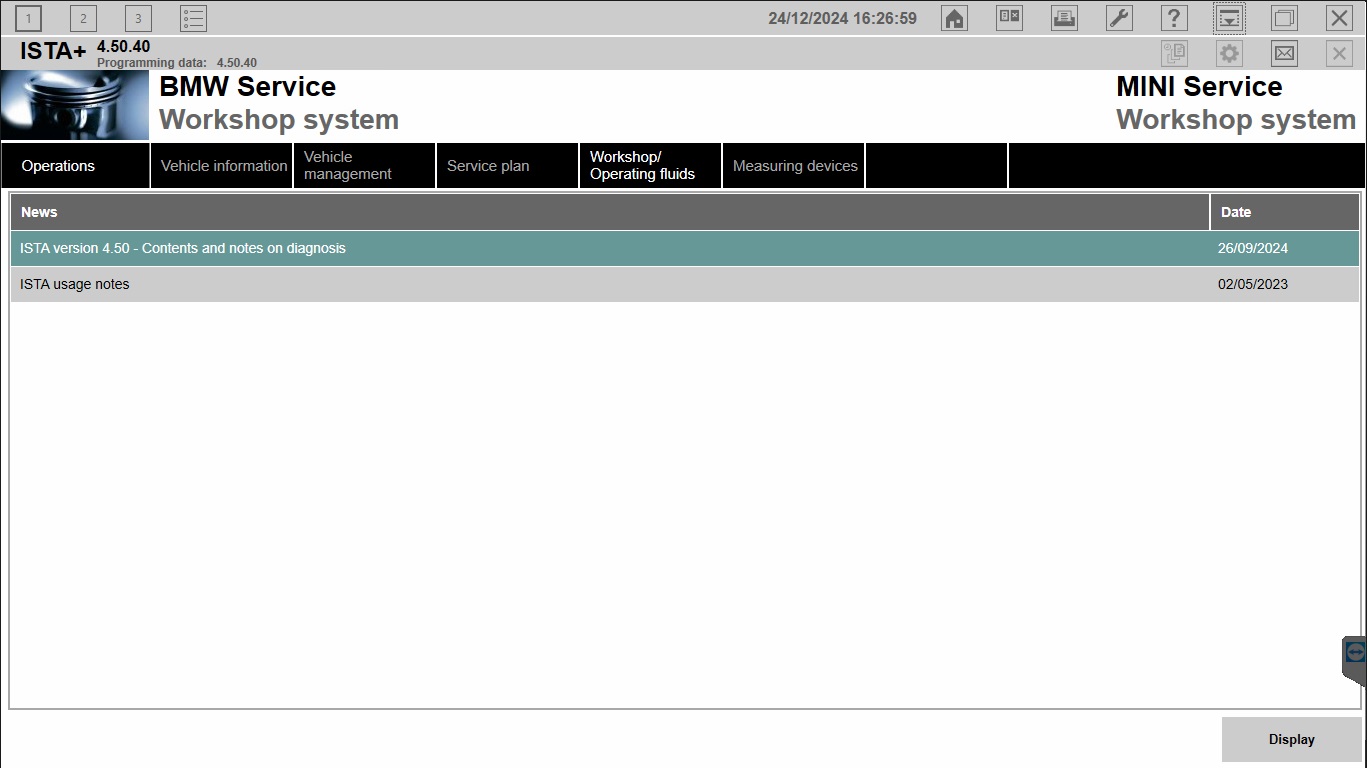
Newest Version V2024.12 BMW ICOM Software Available for Sale !
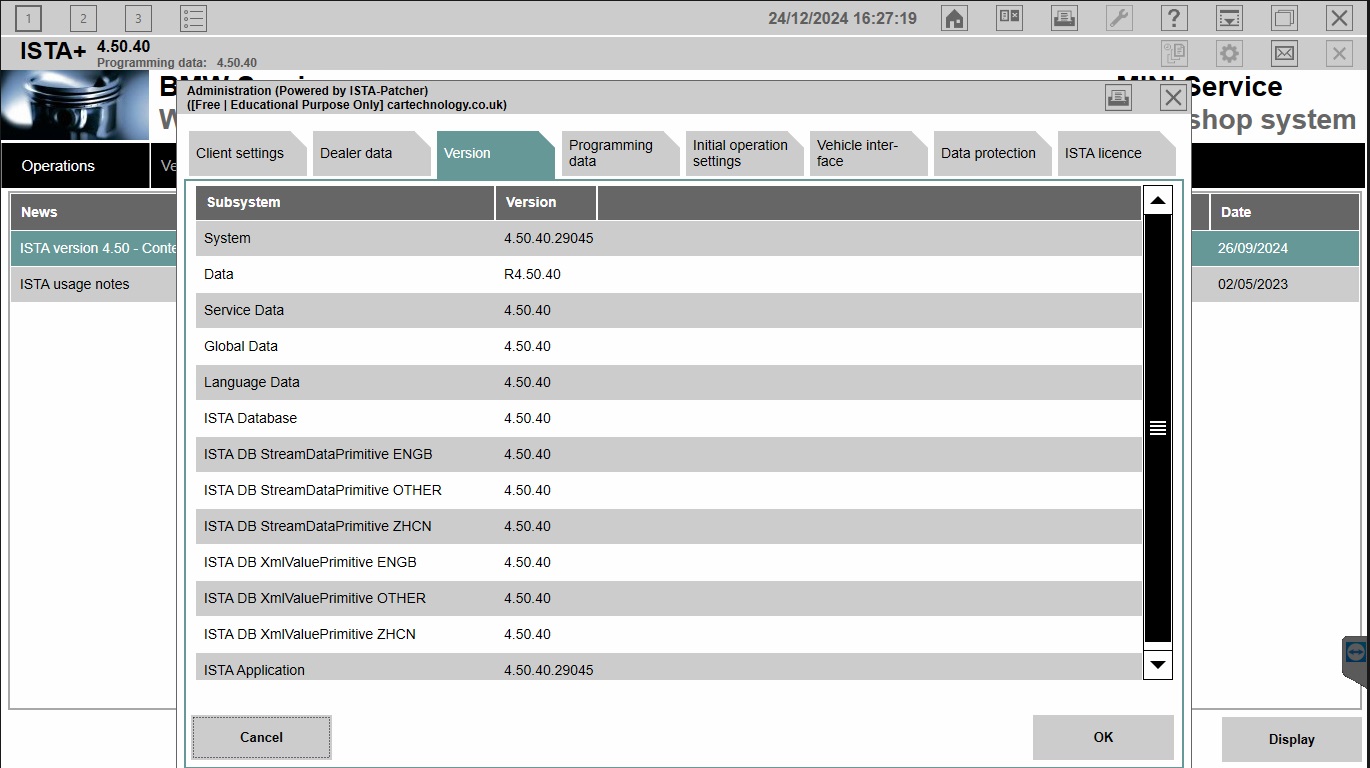
Software Version : V2024.12
ISTA - D: 4.50.40 with SDP Programming Database 4.50.41
ISTA - P: 3.71.200 with Engineer Programming,supports the programming of BMW motorcycles and electric vehicles can program F/G/I/K chassis for car (through the ICOM, not other cable )
Vin: V2024.12.13
BMW ETK: 2020.01
BMW KSD: 2019.12 Multi-language
BMW FSC Navigation Code Generator
BMWAiCoder for BMW Coding
Win10 64 bit operating system
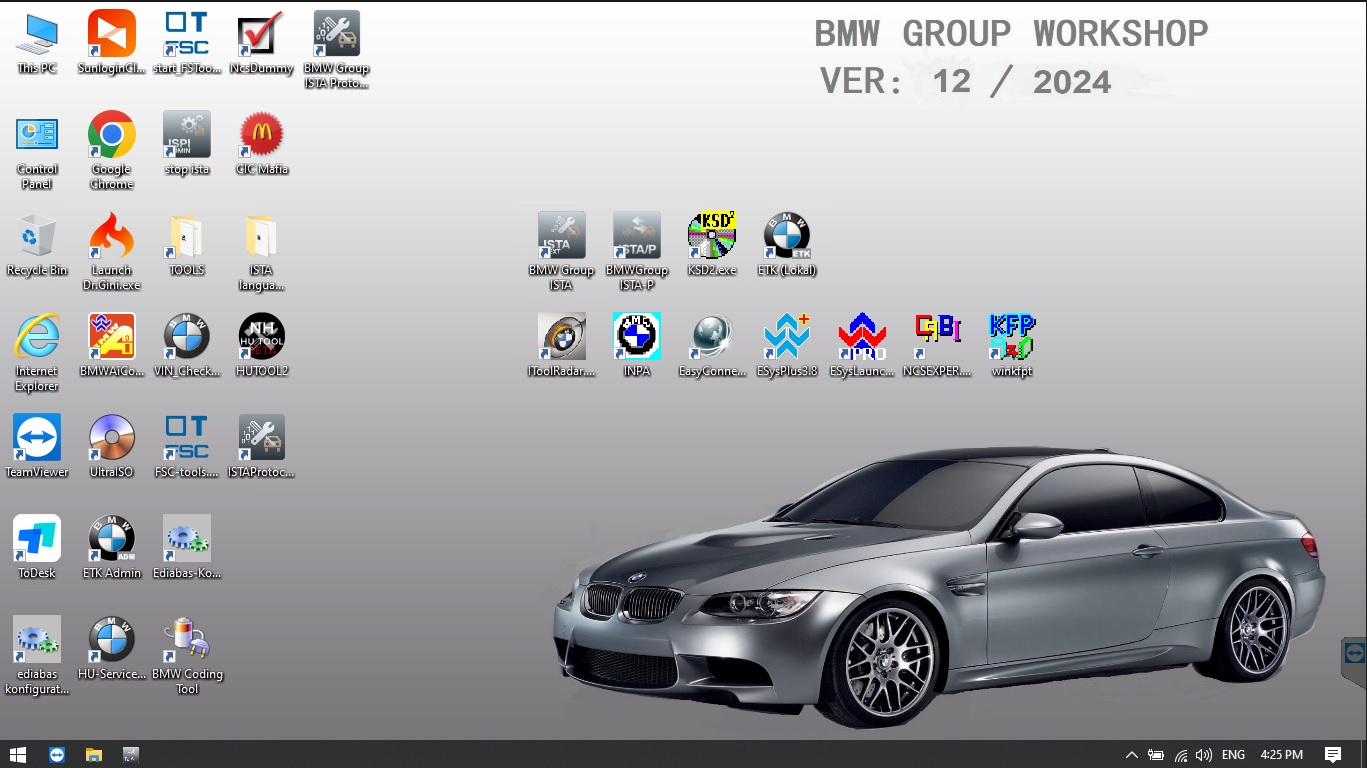
BMW ICOM V2024.12, With free Software:
1. Get engineer version, INPA 5.06,winkfp 5.3.1,NCS 3.5.1, E-sys PLUS 3.81,e-sys 3.35.3,data V71.0
2. Get Chinese software DR.GINI B022
3. Get count code navigation tool software FSC operator code
4. Get one-click hidden brush tool BMWAi V4.6
5. Add DIS Software for Old cars, DISV57 and DISV44,diagnosis and programming for BMW virtual machines
6. Support Vehicles: For BMW Cars,For BMW Motorcycle,For Rolls-Royce, For Mini Cooper
Notice : The software installed English language in default.
if you are interesting in buy BMW ICOM software, please contact our sales : joe@cartooldeal.com