The "interface not found" error in VCDS (VAG-COM Diagnostic System) usually occurs when the software cannot communicate with the diagnostic interface or the vehicle. Here's a step-by-step guide to troubleshoot and resolve the issue.
HEX V2 VAG VCDS 24.7 ATMEGA162 FT232
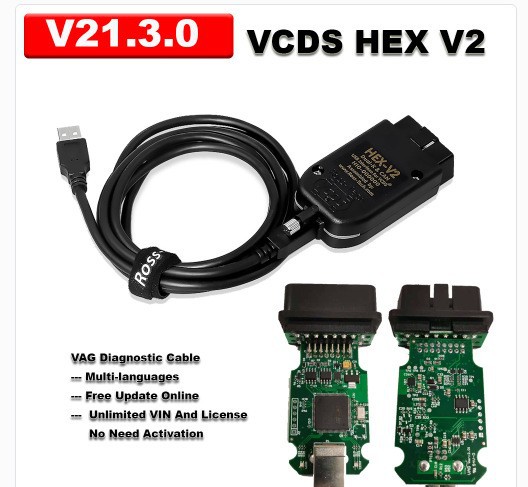
Note:
1.Pls turn off the Anti-virus Software and disconnect internet before installing and using every time , because VCDS software was cracked version, can not recognized by Anti-virus software, so some files will be reported to virus, but in fact it is harmless and necessary to install ,If you worry about the "virus"will infect your laptop , pls do not buy this item.
2.No need change the PC date. If you don't want to turn off the Antivirus software, you need add the related files to Trust in Antvirus software, so will not be deleted by it.
3.Systems required: (32bit/64bit) of Windows 7, Windows 8, Windows XP, Windows 10 (but not all Win10 can work). Not supported Windows on VM Systems (Parallels, Virtual Box, etc) ,MA
The "interface not found" error in VCDS Cable (VAG-COM Diagnostic System) usually occurs when the software cannot communicate with the diagnostic interface or the vehicle. Here's a step-by-step guide to troubleshoot and resolve the issue:
1. Verify HEX V2 Hardware Connection
Check the Interface: Ensure the diagnostic interface (e.g., HEX-V2 or HEX-NET) is securely connected to the vehicle's OBD-II port.
Inspect the USB Connection: If using a wired interface, confirm that the USB cable is securely connected to your computer. Avoid using USB hubs or extension cables.
Confirm OBD-II Power: Check if the LED on the interface lights up when connected to the car. If not, the OBD-II port might not be supplying power.
2. Check VCDS Driver Installation
Open the Device Manager on your computer:
Press Windows + X and select Device Manager.
Look under Universal Serial Bus Controllers or Ports (COM & LPT) for your interface (e.g., Ross-Tech HEX-V2).
If there’s a yellow exclamation mark or the device is not listed, reinstall the drivers from the VCDS installation directory (typically in C:\Ross-Tech\VCDS).
Right-click the device, choose Update Driver, and point to the drivers in the VCDS directory.
3. Test the Interface in VCDS
Open VCDS and navigate to Options > Test.
Ensure the correct USB or COM Port is selected.
If the test fails, try another USB port on your computer.
For HEX-NET users, confirm that Wi-Fi or USB mode is set correctly.
4. Ensure Compatibility
Verify that your interface supports your car. A 2012 VW Golf TDI should be compatible with most VCDS interfaces, but clone or unofficial cables may cause issues.
Check if your VCDS software version matches the firmware of the interface.
5. Update the Software and Firmware
Ensure you are using the latest version of VCDS from the official Ross-Tech website.
If prompted, update the interface firmware via the VCDS software.
6. Test the Vehicle's OBD-II Port
Plug the interface into another compatible VW/Audi vehicle to confirm the interface works.
If the interface works on another car, the OBD-II port on your Golf might be faulty. Check the OBD-II fuse in your car's fuse box.
7. Disable Conflicting VCDS Software
Temporarily disable antivirus or firewall software that might block VCDS from accessing the interface.
Close any other applications that might interfere with USB or COM ports (e.g., Bluetooth software, printer drivers).
8. Run VCDS as Administrator
Right-click the VCDS shortcut and select Run as Administrator to ensure it has full access to system resources.
9. Contact Support
If all else fails, reach out to us. and Provide them with details about your setup, including:
The interface model.
VCDS version.
Your operating system.
By systematically following these steps, you should be able to resolve the "interface not found" error and connect successfully. Let me know how it goes! Our contact email joe@cartooldeal.com