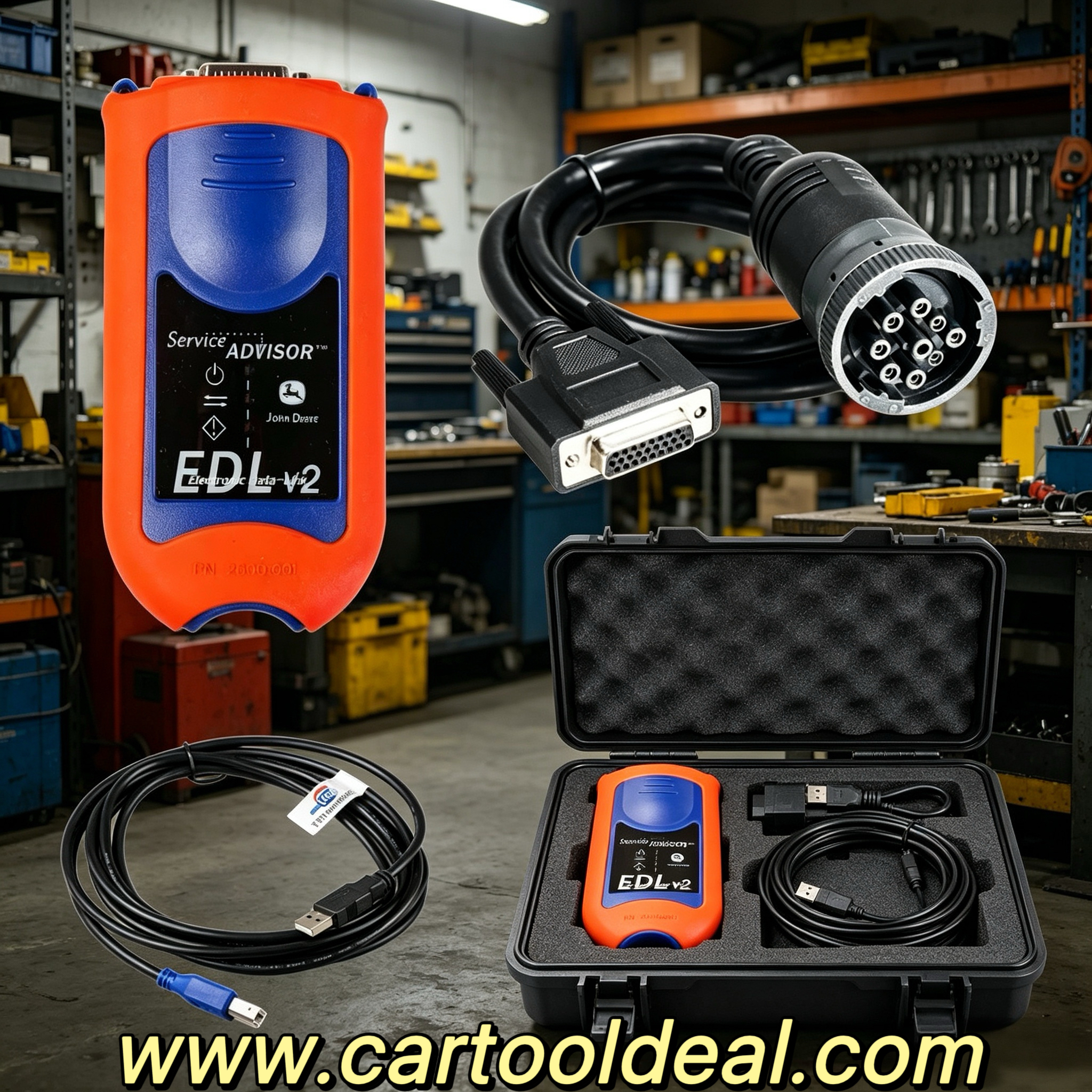
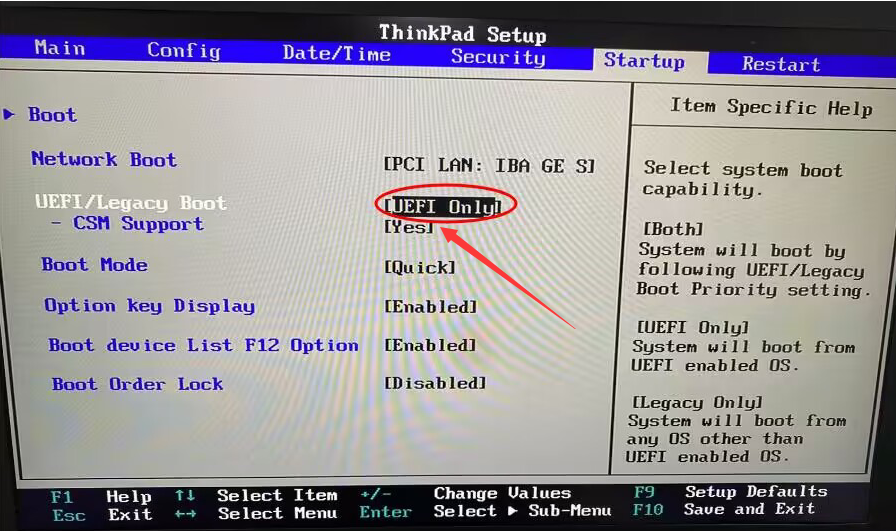
Learn how to download and install CAT SIS software with our step-by-step guide. Get Caterpillar SIS 3.0 & SIS 2.0 installation tips, system requirements, and troubleshooting solutions for seamless diagnostics.
CAT SIS (Service Information System) is an essential diagnostic and repair software for Caterpillar equipment and machinery. It provides wiring diagrams, technical manuals, parts catalogs, and troubleshooting guides to help technicians maintain and repair CAT engines and heavy machinery efficiently.
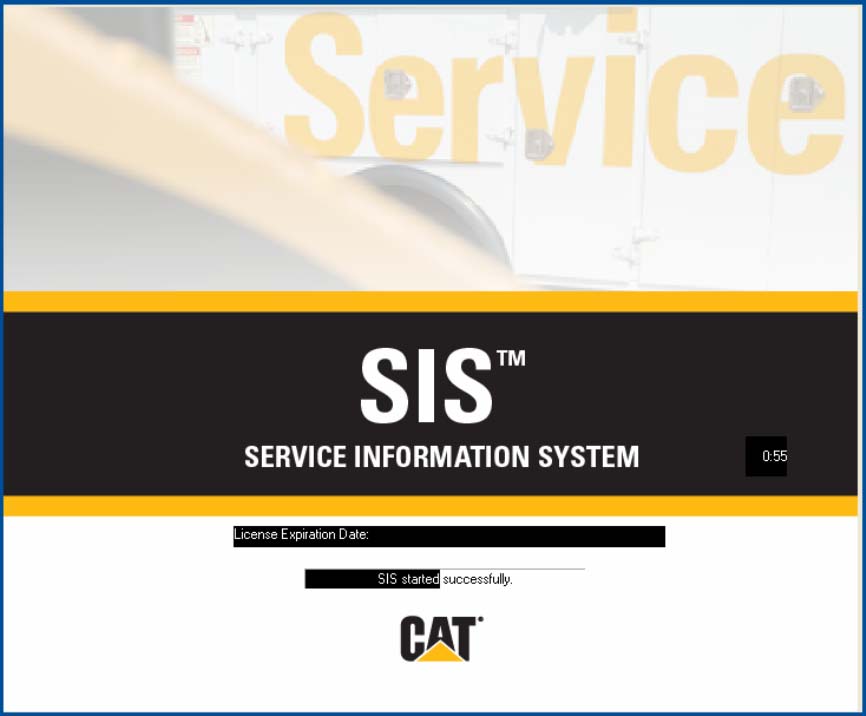
In this guide, we’ll walk you through the CAT SIS download and installation process, including system requirements, setup steps, and common troubleshooting tips.
System Requirements for CAT SIS Installation
Before installing Caterpillar SIS software, ensure your PC meets the following requirements:
Operating System: Windows 7/8/10/11 (32-bit or 64-bit)
Processor: Intel Core i5 or higher (recommended)
RAM: 4GB minimum (8GB recommended)
Hard Disk Space: 100GB+ (for full database installation)
Display: 1024x768 resolution or higher
Additional Software: .NET Framework, Adobe Reader
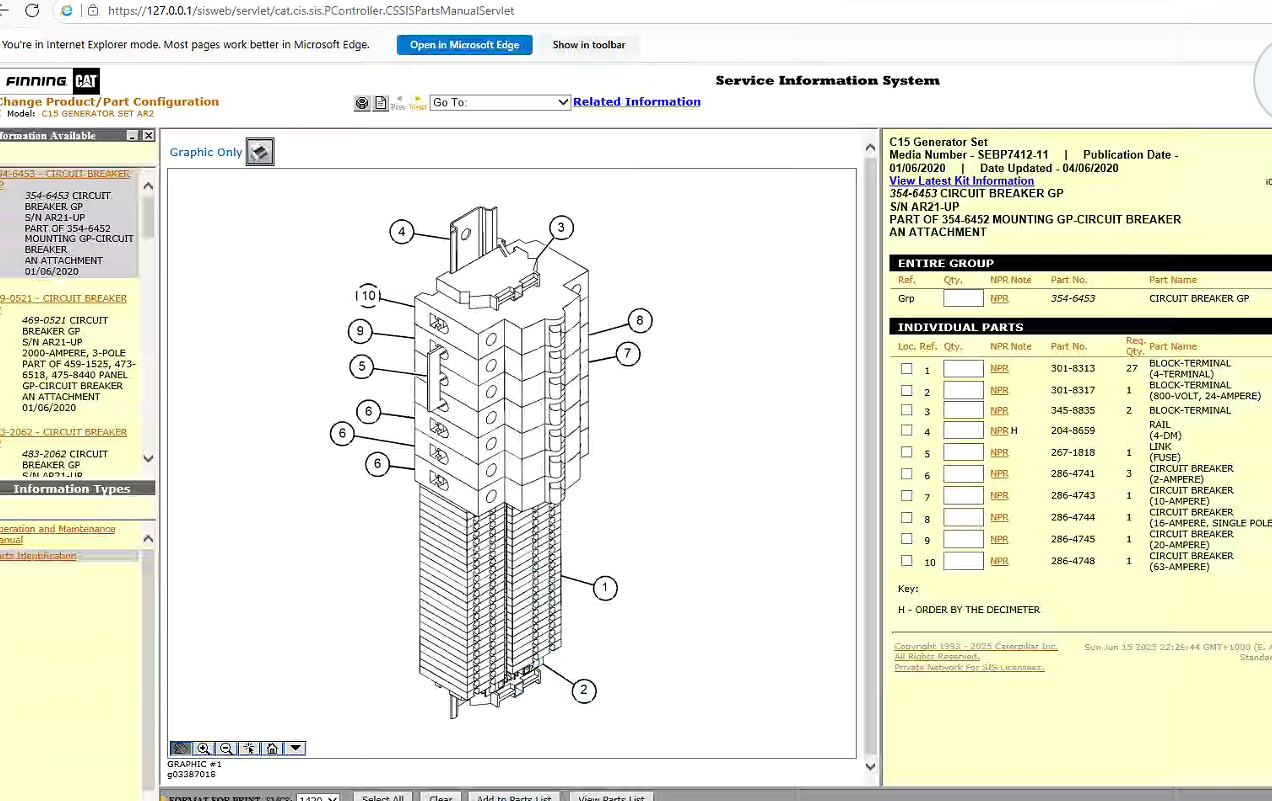
How to Download CAT SIS Software
Visit the official CAT dealer website or trusted third-party providers like
www.cartooldeal.com for the latest
Caterpillar SIS 3.0 or SIS 2.0 version.
Choose the correct version (Standalone or Online) based on your needs.
Download the
Caterpillar SIS setup files along with the necessary license key or activation code.
Step-by-Step CAT SIS Installation Guide
Step 1: Run the Installer
Locate the downloaded CAT SIS setup file (usually a .exe or .iso file).
Right-click and select “Run as Administrator” to begin installation.
Step 2: Follow Installation Prompts
Accept the license agreement and choose the installation directory.
Select the required components (parts catalog, service manuals, wiring diagrams).
Step 3: Enter License Key
Input the activation key provided with your software.
Ensure an active internet connection for license validation.
Step 4: Complete Installation & Restart
Wait for the installation to finish.
Restart your computer to apply changes.
Step 5: Launch CAT SIS
Open the software from the desktop shortcut.
Log in using your credentials (if required).
Troubleshooting Common CAT SIS Software Installation Issues
Error: “Software not compatible” → Run in Windows Compatibility Mode.
Missing .dll files → Reinstall .NET Framework & Visual C++ Redistributable.
License activation failed → Check firewall settings or contact the vendor.
Slow performance → Allocate more RAM or use an SSD for better speed.
Installing CAT SIS software correctly ensures smooth access to Caterpillar repair manuals, parts lookup, and diagnostic tools. Follow this guide carefully, and if you encounter issues, refer to the troubleshooting tips or seek support from authorized dealers.
For the latest CAT ET & SIS software updates, visit trusted sources like cartooldeal.com or official CAT dealer portals.