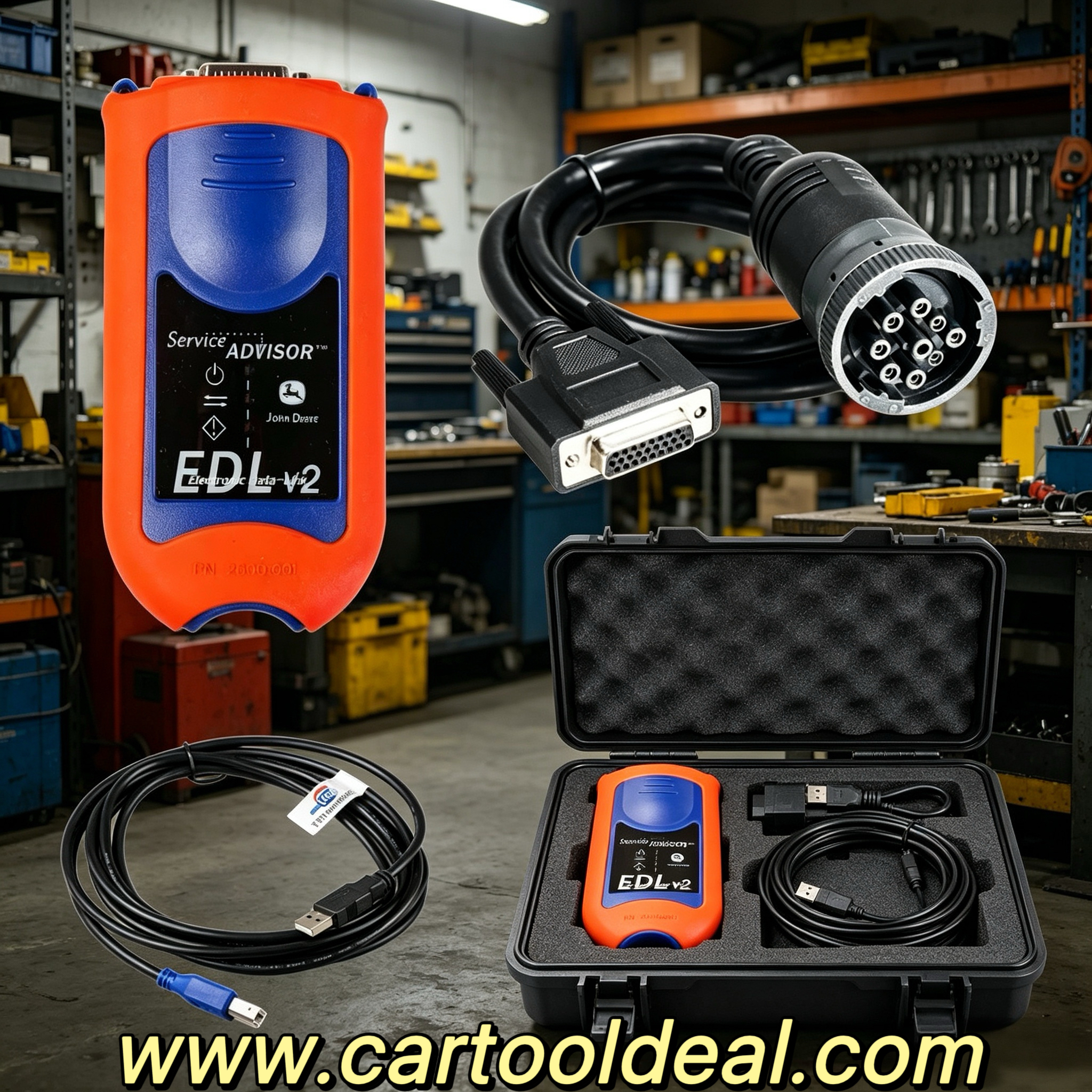
Noergon DLA+ 2.0 adapter is a diagnostic communication device designed to interface between a vehicle and PC via USB cable for diagnostic and vehicle information, re-programming or parameter adjustments.
Noregon JPRO® Professional is the most comprehensive and powerful all makes, all models diagnostic tool available in the industry today. In one, easy annual subscription, JPRO Scanner provides a complete & unparalleled diagnostic service & repair solution with bi-directional functionality.
Next Step Service Information module helps speed up repair times by providing users with detailed engine repair information and troubleshooting guides for ABS and Transmissions – with the click of a button.
Noergon DLA+ 2.0 adapter is a diagnostic communication device designed to interface between a vehicle and PC via USB cable for diagnostic and vehicle information, re-programming or parameter adjustments.
Part 1: Installing JPRO Professional Software 2019 v2
1. Close all other running applications
Ensure no other software is open before proceeding with the installation.
2. Insert the JPRO USB Flash Drive
Plug the JPRO USB flash drive into a USB port on your computer.
3. Access the USB Drive
Open Windows/File Explorer and locate the USB drive.
4. Launch the Installation
Double-click the “Setup” file to open the installation window.
Note: Internet connectivity is required for registration.
5. Start the Installation Process
Click the “Install JPRO” button and follow the on-screen instructions.
6. Complete the Installation
After the installation is complete, close the installation screen.
7. Install the DLA Drivers
Click the “Install DLA Drivers” button and follow the instructions on-screen, as well as the guidance provided in the DLA QuickStart Guide, to finish the installation.
Part 2: Registering JPRO Professional Software 2019 v2
1. Launch the Application
Open JPRO Professional by double-clicking its desktop icon. The software will prompt you to register before use.
2. Add Customer Information
Click the “Edit” button in the Customer Information section.
Fill in your contact information, including a valid email address that you can access.
3. Enter License Keys
Input the license keys you purchased into the designated area and click the “Add” button.
4. Complete Registration
Click the “Register” button.
Your information will be sent to Noregon’s licensing servers via the internet.
Check your email for a confirmation code sent by the licensing servers.
Enter the confirmation code when prompted to complete activation.
Note: Internet connectivity is required for this step.
5. Start Using J PRO Professional
Once registration is successful, you can begin using the software.
6. Access the User’s Guide
From the main toolbar, click “Help” and select “View User’s Guide” for detailed information on application features.
Alternatively, click “Connect” from the main menu, then select the “How To” button in the Connect Window for guidance.
By following these steps, you can successfully install, register, and start using JPRO Diagnostics Software 2019v2.
Solution for "Missing Required Resources" Error in JPRO 2019v1 Installation
If you encounter the "missing required resources" error during the installation of JPRO 2019v1, follow these steps to resolve the issue:
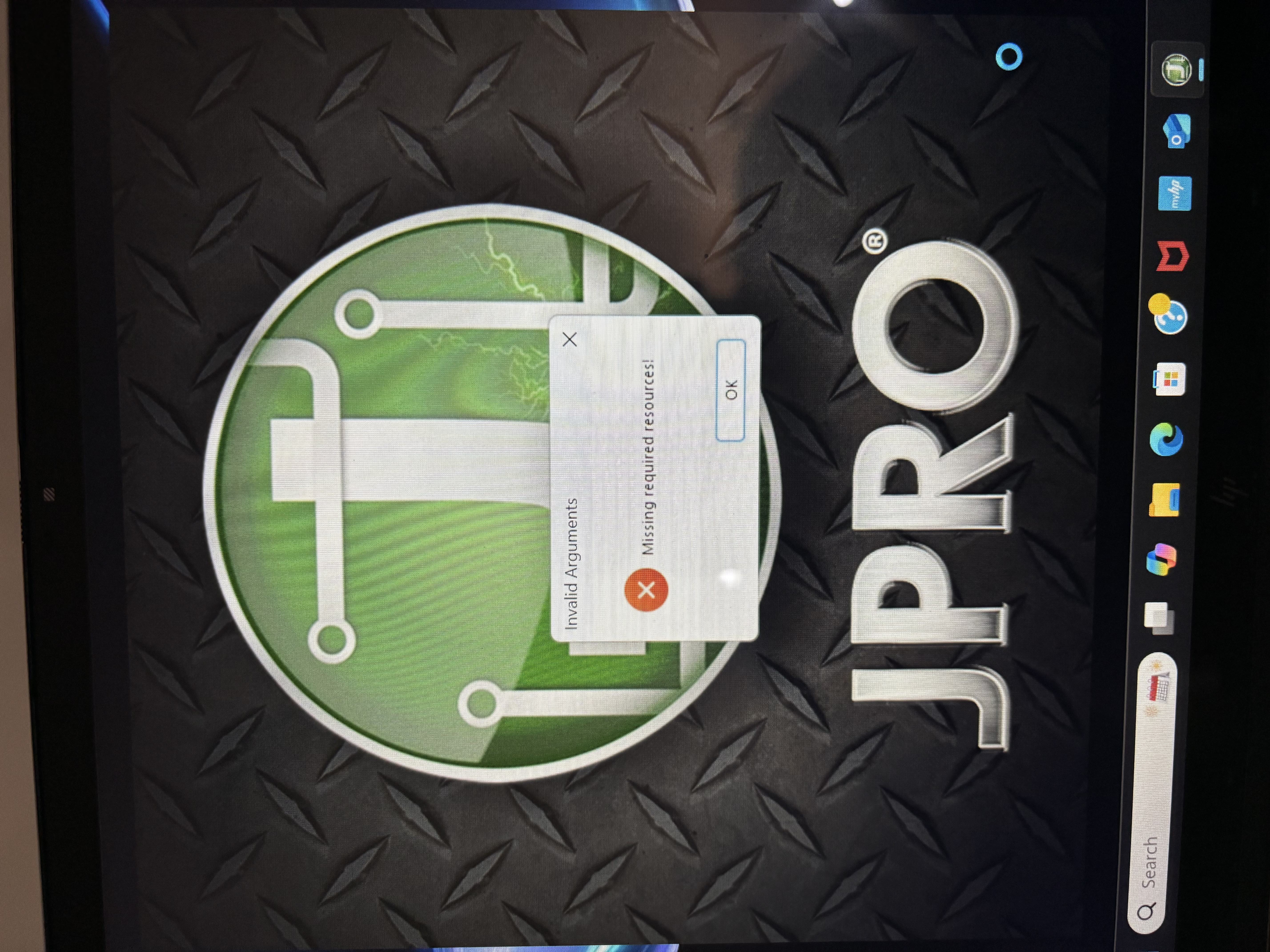
Steps to Fix the Error:
1. Adjust the Date and Time Settings
Right-click on the time and date in the taskbar.
Select “Adjust date and time” from the menu.
Turn off the “Set time automatically” option.
Manually set the date to September 15, 2021.
2. Restart Your Computer
Reboot your computer to apply the changes.
Ensure the system date remains set to September 15, 2021 after restarting.
3.Activate JPRO Diagnostic Software
Open the JPRO activator.
Confirm that the date in the activator matches the system date (September 15, 2021).
Click the “Activate” button to complete the activation process.
4. Launch JPRO
Start the JPRO application to verify that it runs without errors.
This fix is specifically for JPRO 2019v1 running on Windows 10 (64-bit) systems.
Ensure that the system date is reverted back to the correct current date after activation if required for other applications.
By following these steps, you should be able to resolve the error and successfully use JPRO diagnostic Software crack 2019v1.
If you have any other questions about Jpro scanner, please contact our sales via joe@cartooldeal.com